
Integrate Zoom with OfficeSpace | OfficeSpace
The OfficeSpace Zoom integration allows employees to create Zoom meeting links directly when booking rooms via the Visual Directory by enabling the integration through the OfficeSpace connector page, signing in with a Zoom Admin account, and authorizing scopes, with Zoom links accessible in the "Your Events" panel, and can be uninstalled through the Zoom App Marketplace by removing the OSS Room Booking with Zoom app and turning off the integration.
Integrate Zoom with OfficeSpace
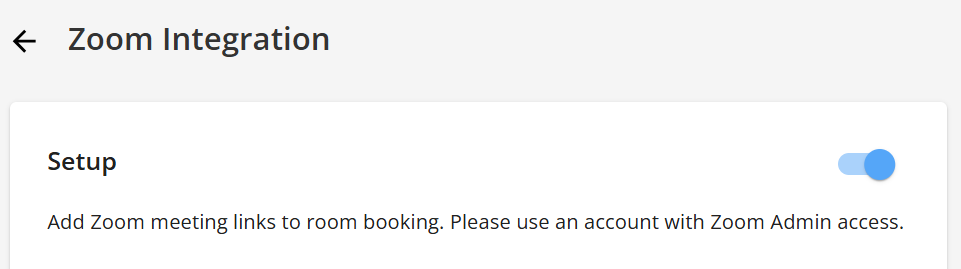
- 1.Go to https://subdomain.officespacesoftware.com/connectors/zoom\_integration
- 2.Turn the integration on
- 3.If prompted to, sign in to Zoom with your Zoom Admin account
- 4.Authorize the requested scopes.
Usage
Zoom integration for Visual Directory allows employees to make a Zoom meeting when booking a room.
Follow these steps to create a Zoom meeting using OfficeSpace:
- 1.Click on the desired bookable room from Visual Directory®
- 2.Enter your meeting details at the right hand side. Before clicking the “Book Room” button, check the “Make it a Zoom meeting” box to generate a Zoom meeting link and then book your room.
- 3.To review the Zoom link created with your meeting. Click on the “Your Events” panel at the top right corner of the screen. A new panel will display, where you’ll be able to retrieve the Zoom meeting link generated with your event.
Uninstalling the Zoom integration
From the Zoom App Marketplace
- 1.Login to your Zoom Account and navigate to the Zoom App Marketplace.
- 2.Click Manage > Installed Apps or search for the OSS Room Booking with Zoom app.
- 3.Click the OSS Room Booking with Zoom app.
- 4.Click Uninstall.
- 5.Turn the integration off.
Qualified